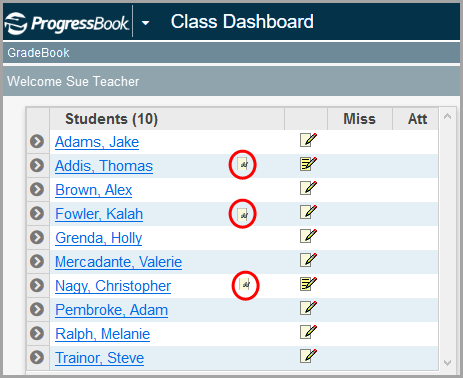
beside the student’s name on the Class
Dashboard. This icon displays for students with completed tasks
in SpecialServices Classic for 13 months after the last task was completed.
beside the student’s name on the Class
Dashboard. This icon displays for students with completed tasks
in SpecialServices Classic for 13 months after the last task was completed.Welcome to SpecialServices
SpecialServices Classic focuses on the tasks special educators perform to identify, evaluate, and monitor a student's progress in a special education program by providing the state and district forms necessary for each stage of the process. SpecialServices Classic keeps the state-required forms up-to-date so that districts can remain in compliance with state and federal laws. SpecialServices Classic also contains a state reporting tool to extract information entered onto the forms for Individualized Education Plans (IEPs), Evaluation Team Reports (ETRs), Individual Service Plans (SPs), and other required forms in the state-mandated format. This information can then be imported into StudentInformation or a state data collection tool.
•“Accessing SpecialServices Classic”
•“Navigating SpecialServices Classic”
•“Finding the Information You Need”
•“Using SpecialServices Classic WebHelp”
•“Special Education Process Flow”
Accessing SpecialServices Classic
You can access SpecialServices Classic in any of the following ways:
1.Teachers
in GradeBook with the security privileges to view or edit SpecialServices
Classic tasks can access the forms for their students by clicking beside the student’s name on the Class
Dashboard. This icon displays for students with completed tasks
in SpecialServices Classic for 13 months after the last task was completed.
2.If
you are already logged in to another ProgressBook application, on the
banner beside the ProgressBook logo, click  . and Then,
click the application logo.
. and Then,
click the application logo.

SpecialServices Classic opens in a new window or tab.
3.If you are not already logged in to ProgressBook, or if your district provides standalone access to SpecialServices Classic via a URL, you must log in. See “Logging In to SpecialServices Classic.”
Logging In to SpecialServices Classic
Log in to SpecialServices Classic on the ProgressBook CentralAdmin login screen.
1.In a web browser, enter the URL provided by your district.
The ProgressBook CentralAdmin login screen displays.
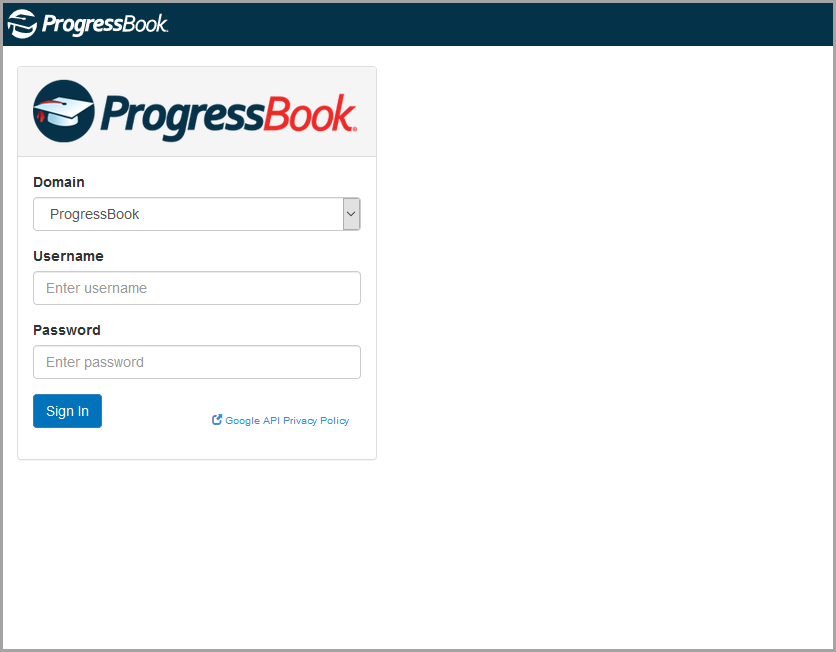
2.Select your Domain from the drop-down list, and then enter your Username and Password in the appropriate fields.
3.Click Sign In.
The SpecialServices Classic home screen displays. The district in context displays on the banner at the top right of the screen. If you have access to multiple districts and want to view data for a different district, see “Changing Districts.”
The home screen that displays depends on your security privileges.
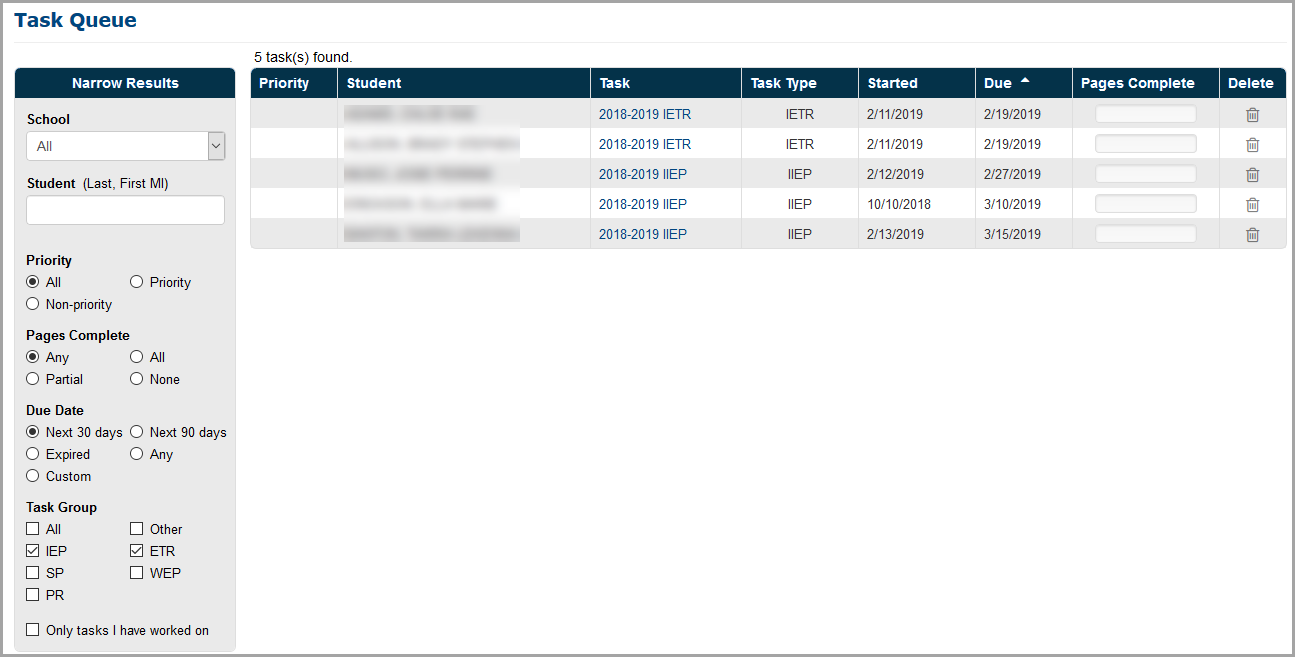
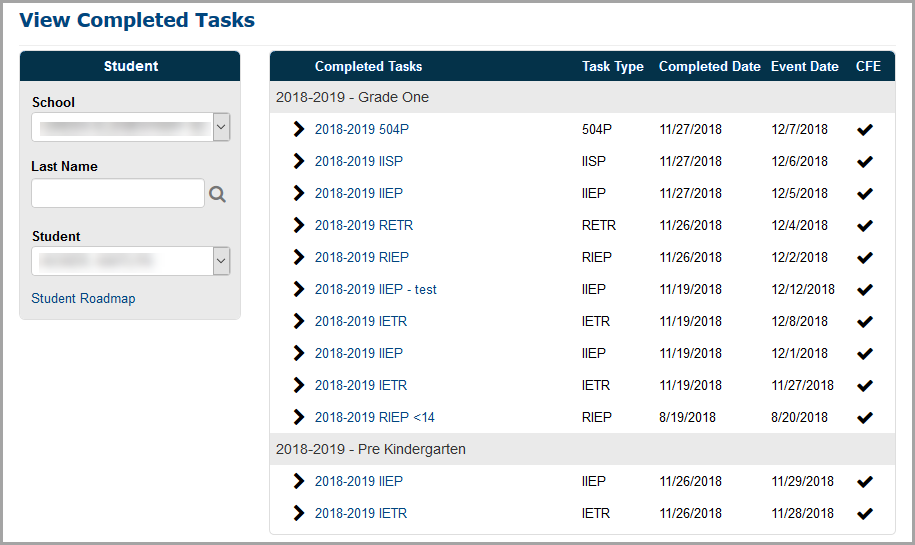
•If you have task editing and/or administrative privileges, the Task Queue screen displays the first 50 open tasks in ascending order (based on the Due date column). The tasks for students that display are based on the default view for the Narrow Results area, which is All classes, no student selected, All priorities, Any pages complete, due in the Next 30 days, and IEP and ETR task groups.
•If you have read-only privileges, the View Completed Tasks screen displays, allowing you to open and review the completed tasks for the students to whom you have access.
Logging Out of SpecialServices Classic
To prevent unauthorized use, ProgressBook automatically logs you out after a period of inactivity, a length of time that is defined by your system administrator. The timer calculating inactivity is reset each time you perform an action anywhere in the ProgressBook Suite. A warning message displays 3 minutes before the session times out. If you want to continue working in SpecialServices Classic, click Continue working.
|
Caution: Save your data frequently. If you are editing a form in SpecialServices Classic and click one of the save buttons and get the timeout message, you can sign back in, and your changes save. However, if you are editing a form and try to close it (or navigate away from it) and get the timeout message, any unsaved changes do not save, and you cannot retrieve them by signing back in. |
|
Caution: There is an exception for the EMIS Data Collection Form (DCF). While attempting to save information on that form, if you have been signed out due to inactivity, your information does not save. |
You should manually sign out of SpecialServices
Classic if you plan to leave your computer unattended for any length of
time. To sign out, on the banner, click  , and then
click Sign Out.
, and then
click Sign Out.

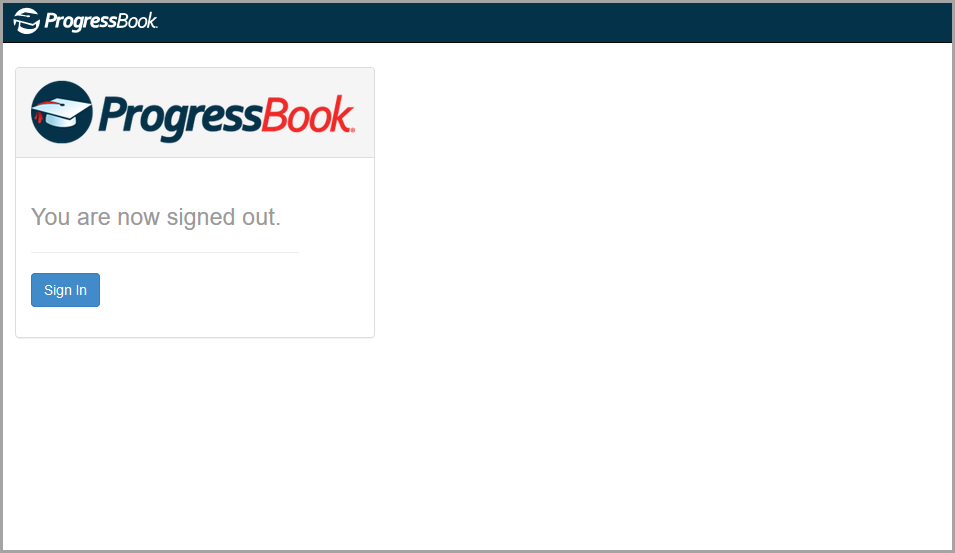
The CentralAdmin logout screen displays, confirming that you are signed out of the ProgressBook Suite.
Navigating SpecialServices Classic
SpecialServices Classic provides the following options to help you navigate the application:
•Banner – See “Understanding the Banner”
•Menu – See “Navigating to Other Screens”
•Breadcrumbs – See “Following Breadcrumbs”
•District drop-down list – See “Changing Districts”
The banner at the top of every screen lets you perform several main functions in SpecialServices Classic. For details on these functions, see “Banner Icons.”

Icon |
Action |
|---|---|
|
Click to return to the home screen. |
|
Click to open the application quick launch menu that lets you navigate to other registered ProgressBook applications you are authorized to use. |
|
Click to open a drop-down list that lets you navigate to other screens in SpecialServices Classic (see “Navigating to Other Screens” ). |
|
Displays the school district in context. If you have access to multiple districts, click to open a drop-down list that lets you change districts (see “Changing Districts” ). |
|
Click to open a drop-down list that displays your username and lets change your password or log out. |
|
Click to open a drop-down list that displays a Feedback link that lets you provide feedback to your ITC. |
|
Click to open ProgressBook SpecialServices Classic WebHelp (see “Using SpecialServices Classic WebHelp” ). |
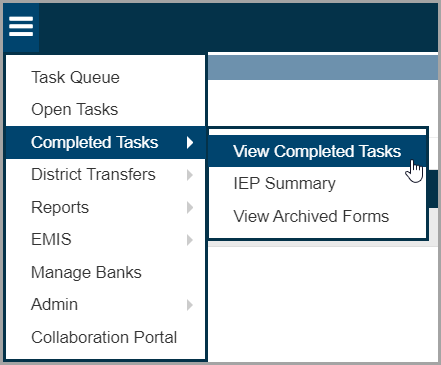
To navigate to other screens in SpecialServices
Classic, on the banner, click  ,
and then click the name of the desired screen.
,
and then click the name of the desired screen.
Note: The security role assigned to your user account determines which screens you can access.
A breadcrumb trail displays below the banner to help you track your location within SpecialServices Classic. You can click the SpecialServices breadcrumb to return to the home screen.

If you have access to multiple districts in SpecialServices Classic, you can switch between them at any time while logged in. On the district drop-down list, select the district.

Accessing the Frontline Collaboration Portal
The Frontline Collaboration Portal lets you send PDFs of open tasks for the desired recipients to review. Recipients can then sign and/or annotate the PDF as necessary. If you have New or Edit security privileges, you can access the Frontline Collaboration Portal from SpecialServices Classic.
To access the portal, on the banner, click
 , and then click Collaboration
Portal.
, and then click Collaboration
Portal.
The Frontline Collaboration Portal opens in a new tab.
Note: Once all recipients have signed and/or annotated the PDF, you can download the PDF, upload it as an attachment to the applicable task, and then complete the task as normal.
Note: For more information on the Frontline Collaboration Portal, see the Collaboration Portal User Guide.
Finding the Information You Need
The following sources of information are available to assist you while you are using SpecialServices Classic:
•Tooltips – To view a description of a button or symbol, hover your cursor over the icon.
•SpecialServices Classic WebHelp – On any screen,
click  on any screen
to open ProgressBook WebHelp (see “Using
SpecialServices Classic WebHelp” ).
on any screen
to open ProgressBook WebHelp (see “Using
SpecialServices Classic WebHelp” ).
•Contact Us – On the banner, click  ,
and then click Feedback to
send questions or concerns to your ITC.
,
and then click Feedback to
send questions or concerns to your ITC.
Using SpecialServices Classic WebHelp
1.On
the banner, click  .
.
The WebHelp home screen opens in a new window or tab.
2.Click the SpecialServices Classic logo.
The SpecialServices Classic WebHelp screen displays, on which you can:
•Browse the Table of Contents for specific topic titles.
•Enter keywords in the Index to search for information.
•Enter a word or phrase in the Search field to return a list of possible help topics.
•View
a list of terms and definitions by clicking the glossary icon ( ).
).
Click  to navigate between ProgressBook applications that you are authorized
to use.
to navigate between ProgressBook applications that you are authorized
to use.
1.On
the banner, beside the ProgressBook logo, click  .
.
In the application quick launch area, logos display for all ProgressBook applications that are registered in CentralAdmin.

2.Click the logo of the application you want to access.
The application opens in a new window or tab.
If you have DataMap installed and registered and you have access to a student in DataMap, you can click the Student Roadmap link in SpecialServices Classic to open the Student Roadmap screen for that student in DataMap. The Student Roadmap link displays on the Open Tasks and View Completed Tasks screens as well as in the Supplemental Info area of the task menu that is available when you are editing forms.
Special Education Process Flow
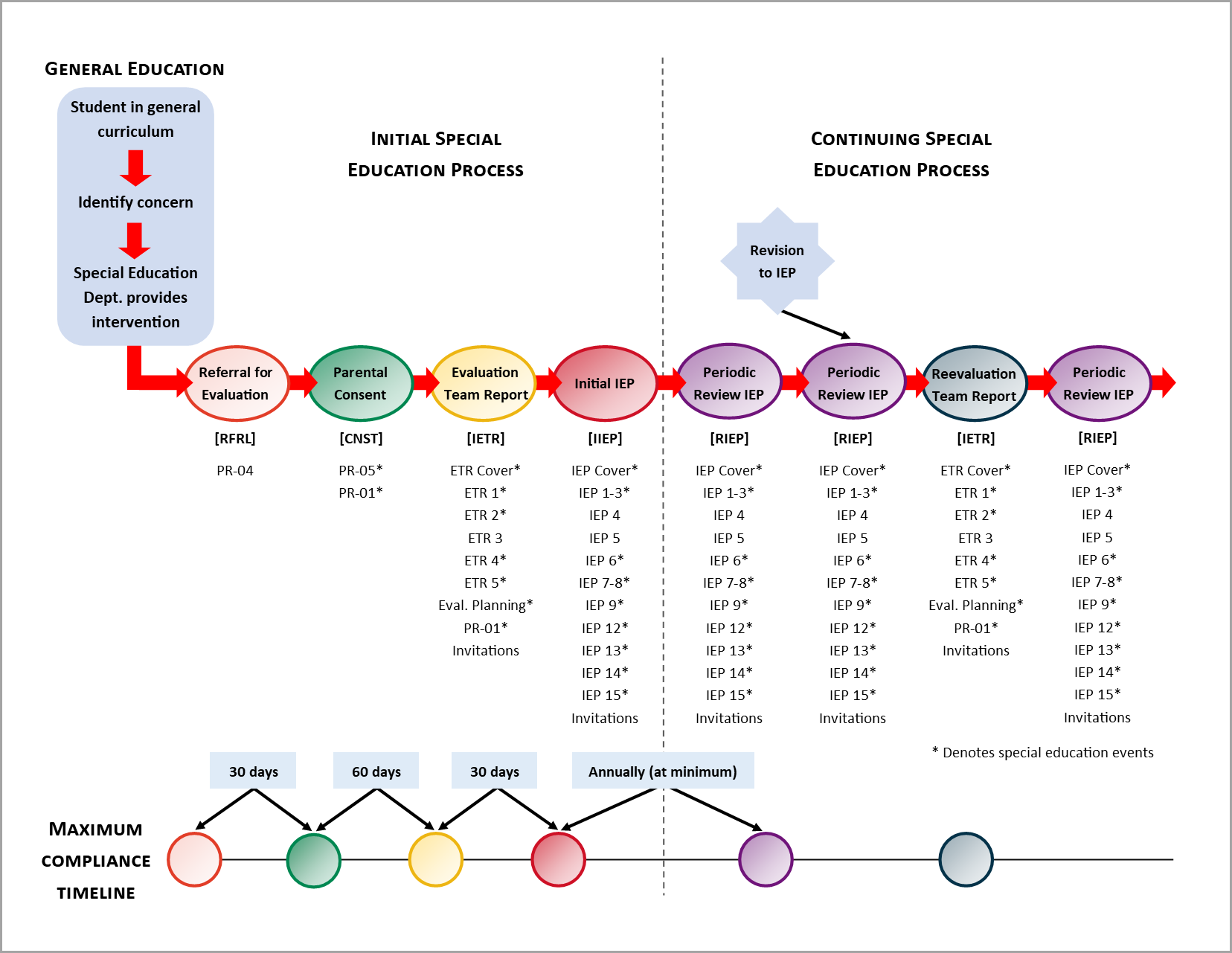
SpecialServices Classic is designed to follow federal and state mandated timelines and procedures. To accommodate these requirements, SpecialServices Classic uses tasks that correspond with special education events and contain required and additional forms to complete the task. For more information about each of the tasks, see “SpecialServices Classic Tasks.”
In SpecialServices Classic, an open task is the task in which the members of a special education team are editing the forms. Only users with the appropriate security privileges can view or edit open tasks; users with view-only access to SpecialServices Classic cannot access open tasks.
Once the task is complete, a member of the team handling the task must complete the task to let users with view-only access to view the effective version of the forms. You might complete a task to keep a historical copy of a draft form set, such as an IEP, or only when the effective version of the form set is implemented.
The last component of the special education process that SpecialServices Classic provides is EMIS reporting. Certain tasks, such as an initial IEP or a review ETR, are reported to the state to ensure compliance with the federal and state mandated standards and ensure funding of special education programs for the district. The EMIS extract—as well as the EMIS reporting tools— select data only from completed tasks.
The following image explains the special education process flow, the corresponding tasks provided by SpecialServices Classic, and the forms associated with each task.