|
|
If you are printing report cards, in the website banner, click the Template tab to proceed to format your report card template. See “Adding Messages to Report Cards.” Otherwise, click Year to Date Calc to proceed to set up the year to date calculation method.System Calculations Comparison (Example)
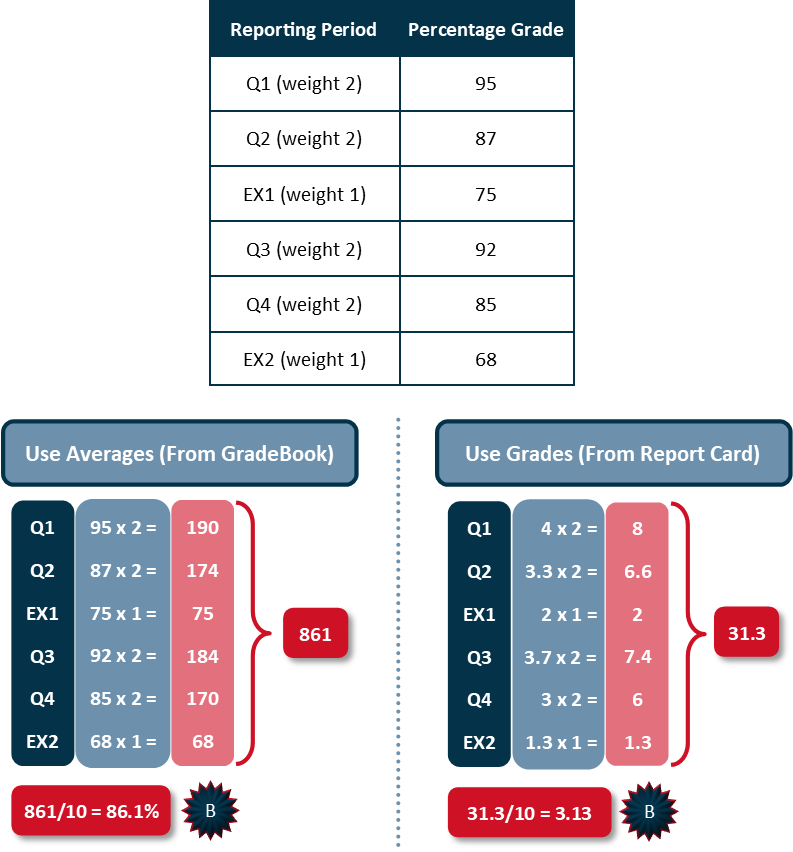
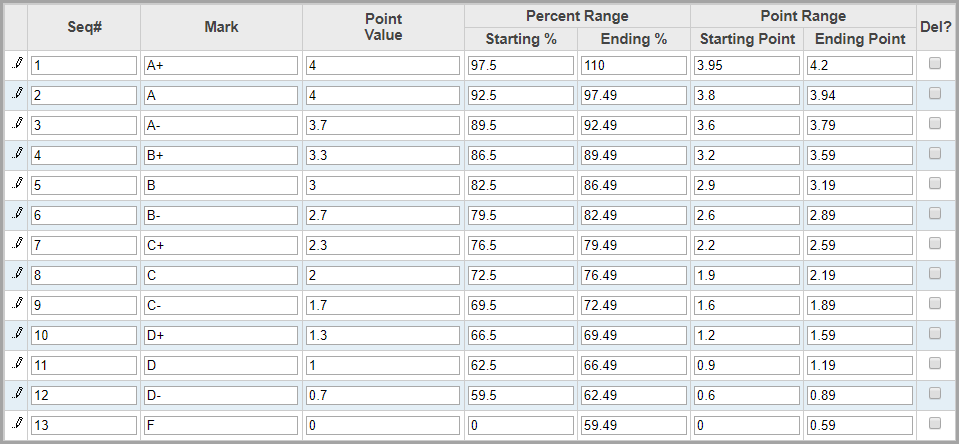
The graphic below depicts a comparison of how a student’s final grade is calculated based on whether you select Use Averages (from GradeBook) or Use Grades (From Report Card) in the Select the Calculation Method drop-down list on the Report Card Builder screen System Calcs tab. In the table at the top of the graphic, the Reporting Period column displays an example reporting period and its equivalent weight (weights can be specified on the Report Card Builder screen System Calcs tab). The Percentage Grade column displays the example student’s percentage grade for each reporting period. The assumed grading scale is pictured below the graphic. For further explanation of the graphic, see “Use Averages (From GradeBook)” and “Use Grades (From Report Card).”
|
|
In the above example, the following grading scale is used:
|
|