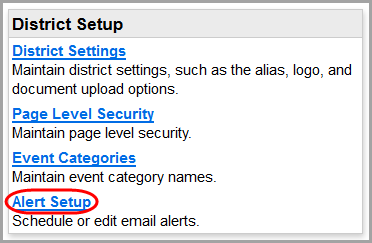
1.On the ParentAccess Administration screen, below District Setup, click Alert Setup.
The Parent Access Alerts screen displays.
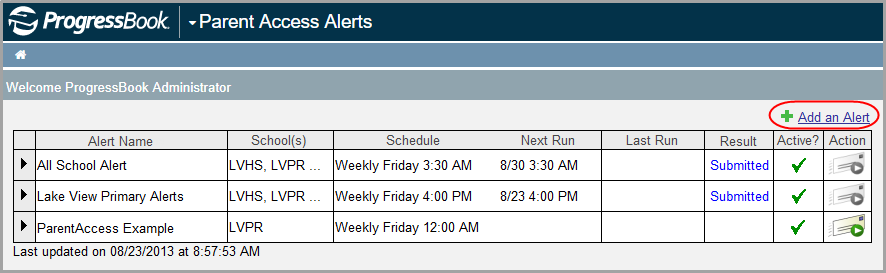
2.Click Add an Alert.
3.On the Add Alert window, enter an Alert Name.
4.In the Alert Type(s) area, select if this alert is for Missing Assignments and/or Low Assignment Marks.
5.Select a Run Frequency for the alert:
•Daily – Send the alert every day at a specified time
•Weekly – Send the alert weekly on a specified day and time
•Manual – Send the alert only when the GradeBook system manager runs it manually
6.If you selected Daily or Weekly in step 5, select a Run Time at which to send the alert.
7.If you selected Weekly in step 5, select a Run Day on which to send the alert.
8.Select the Active? checkbox.
9.In the Select the schools that will use this alert area, select individual school(s) or All Schools.
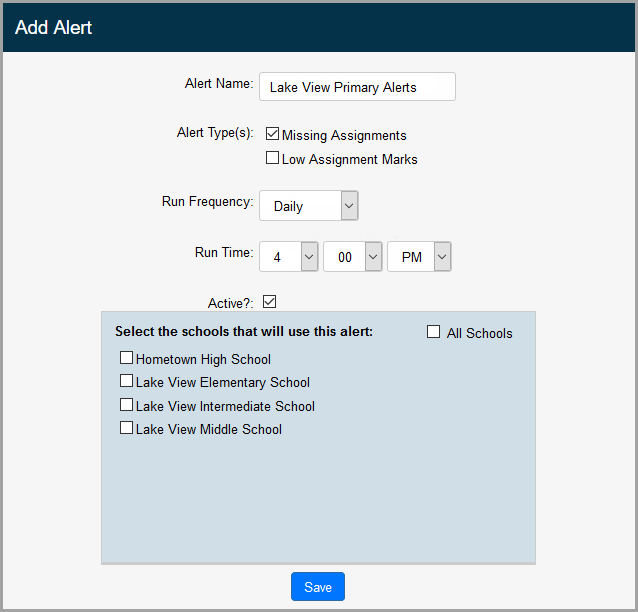
10.Click Save, and close the window.
11.Run the alert at least once manually. (See “Run Alerts.”)