You can run an alert manually at any time even if it is previously scheduled.
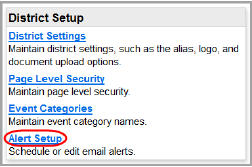
1.On the ParentAccess Administration screen, below District Setup, click Alert Setup.
The Parent Access Alerts screen displays. In the Action column, an alert is available to run if  displays in color (not grayed out).
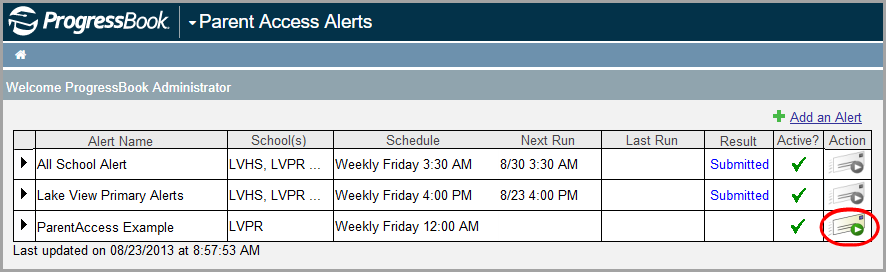
2.In the row of the alert you want to run, click  .
.
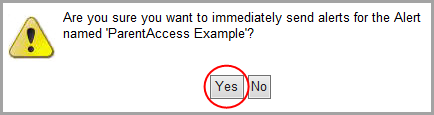
3.On the window that opens, click Yes to confirm that you want to run the alert now.
The alert runs and displays a status of Submitted in the Result column.

As the alert cycles through the following stages, the alert status in the Result column changes.
Alert Status with Description
|
Event |
Status |
Description |
|
User clicks |
Submitted |
The Alert Service has received the request to run. |
|
The previously scheduled time has already occurred or user clicks |
In Progress |
The alert is being processed for each school building. This could take several minutes depending on the number of buildings. |
|
The alert has processed. |
Completed |
The alert has processed successfully for all school buildings. |
|
The alert has not processed. |
Failed |
The alert has not processed successfully for all school buildings. |

