|
|
You can unassign an activity to your students without deleting the activity or completed assignment grades. Unassigning an activity is typically used to correct mistakes in the activity before students have begun taking it.
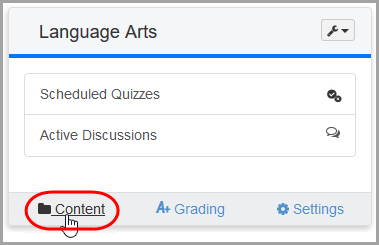
1.On the Dashboard screen, click Content on the course containing the activity you want to unassign.
|
|
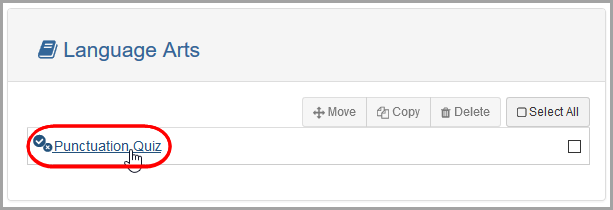
The Content screen displays.
2.Click the name of the activity you want to unassign.
|
|
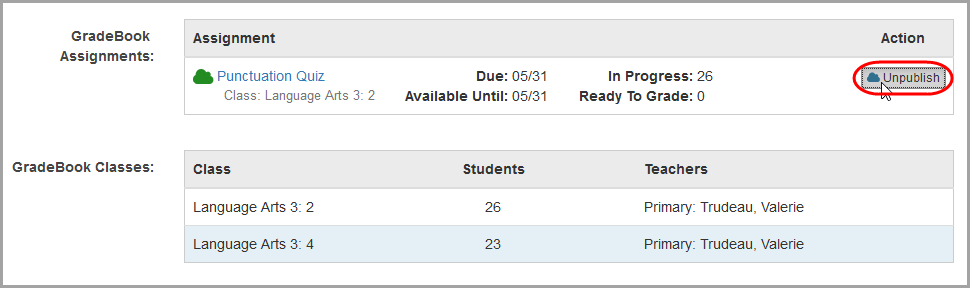
The Details screen displays.
3.In the GradeBook Assignments area, in the Action column, click Unpublish.
|
|
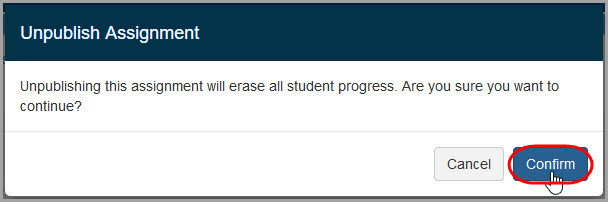
The Unpublish Assignment window displays asking you to confirm that you want to unpublish the activity.
4.Click Confirm.
|
|
The activity is unassigned and students can no longer take the activity. Marks remain in GradeBook for students on any existing assignments that were linked to the activity previously. If you publish a quiz again after unpublishing it, student responses given the first time it was published remain. If you publish a discussion again after unpublishing it, student posts created the first time it was published also remain.
If you want to erase student answers or posts, you must delete the assignment in GradeBook. See “Deleting an Assignment Linked to an Activity.” Then, you must create a new activity.