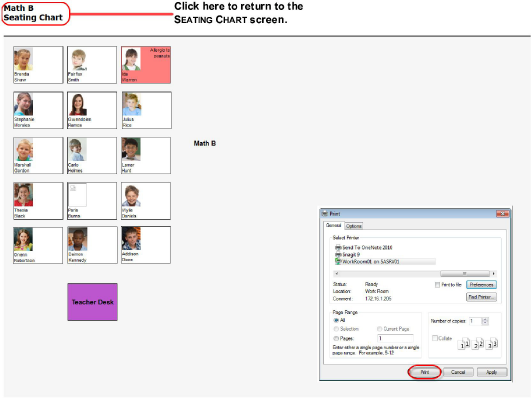
Use this option to print the seating chart without the GradeBook banner. If you entered comments while you were creating the seating chart, they display on the chart when you print it.
1.On the Seating Chart screen, click
on the toolbar.
2.On the browser message window, click OK.
A printable version of the seating chart displays in the browser.
3.Select File > Print.
4.On the Print window, click Preferences.
5.Select the desired page orientation and paper size for your seating chart.
6.Print the seating chart.
7.Click the seating chart title at the top of the screen to return to the Seating Chart screen.
|
|