|
|
Enter Period Attendance by Class
1.On the Teacher Home Page or Class Dashboard, click Period Attendance.
2.On the Period Attendance screen, if you entered from the Teacher Home Page, in the Class List, select the appropriate class. If you entered from the Class Dashboard, that class displays in the Class drop-down list.
3.In the Date field, verify that today's date displays. If it is not the correct date, click inside the field to select the appropriate date.
Note: If the option to enter or modify period attendance for prior days is enabled, then you cannot enter or modify period attendance on the Period Attendance screen or Seating Chart on a day that is past the number of days set to allow for period attendance. The list of attendance codes is not available in the Class Attendance list on the Period Attendance screen, and the following message displays: “Altering period attendance in the past is only available for [X] day(s) prior to the current date.”
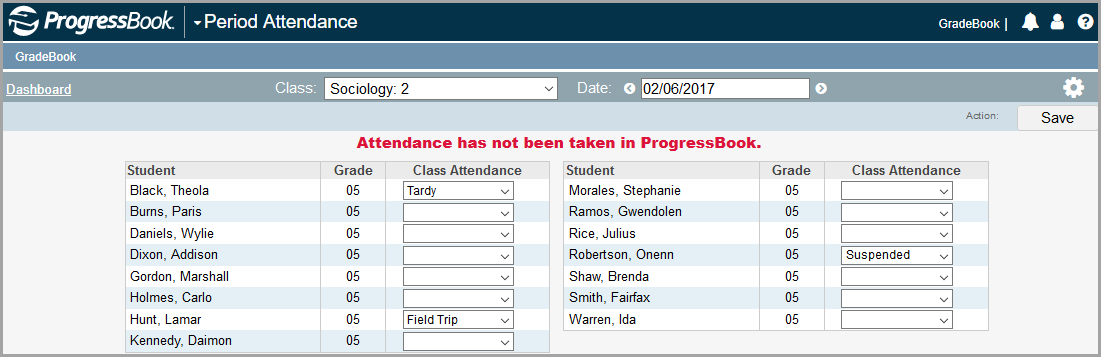
4.In the Class Attendance drop-down list, select the appropriate absence type. Leaving the absence type blank indicates the student is present.
Note: The available absence type codes are set up by your district's GradeBook system manager and may vary for each school.
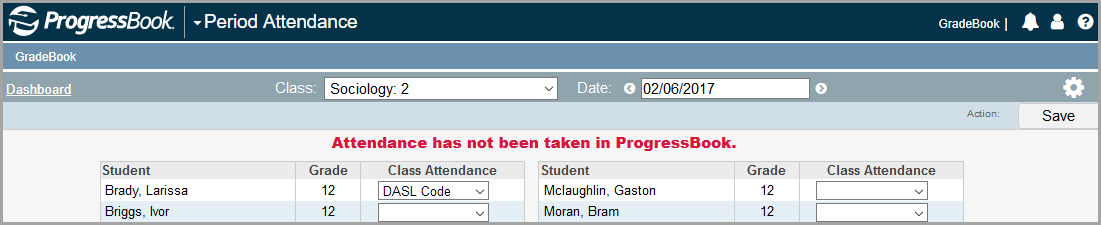
Note: For districts that run live period attendance, if the attendance staff entered an absence type code in StudentInformation that has not been imported yet into GradeBook during the data integration process, DASL code displays in the Class Attendance drop-down list.
|
|
Note: When users save an absence type code for a student that was manually added in GradeBook rather than imported from StudentInformation, the code cannot be saved into StudentInformation but is saved in GradeBook. In this scenario, once the user saves, the code does not display in the Class Attendance drop-down list on the Period Attendance screen, and the following message displays: “Attendance data for one or more students did not save successfully.” Absence type codes that have not been saved in StudentInformation do not display on the Period Attendance screen. However, absence codes that have been saved in GradeBook do display in Period Attendance view on the GradeBook Grid.
Note: If a student has been marked absent in daily attendance, make sure to enter the absence on period attendance as well to ensure that attendance displays correctly in ParentAccess and to prevent students from displaying on the Potential Skip Report in error.
5.Click Save.
The message “Your changes have been saved” displays at the top of the screen.
The absence types selected here also display on the GradeBook Grid, the Student Profile screen Progress tab, the Seating Chart screen, and in ParentAccess.
|
|