|
|
Users with master, school administrator, and school support privileges can access any teacher’s grade book to help them as needed. When you help a teacher in this manner, you cannot perform certain tasks for the teacher because they are associated with the login that created them. For example, do not edit the class list or create assignment types for the teacher because these will be associated with your account and not the teacher’s account. This also applies to VirtualClassroom courses and activities.
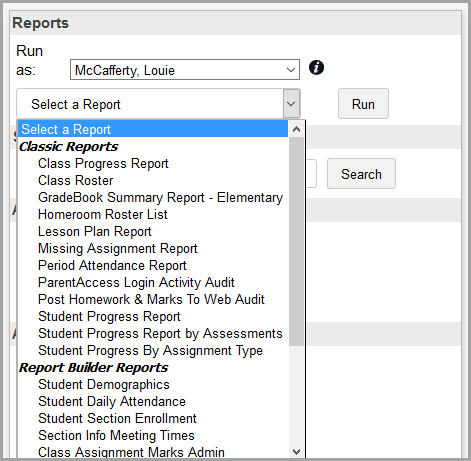
You can assist a teacher with running Report Builder reports from the Teacher Home Page and Class Dashboard. The Run as drop-down list includes the user helping the teacher as well as the user being helped. On the Teacher Home Page, the default option in the list is the current user. On the Class Dashboard, the default option in the list is the primary teacher of the class. If there is no primary teacher for the class, the first additional teacher displays in the list. Once you have selected the teacher to help in the Run as drop-down list, the reports to which the teacher has access display in the list.
1.On the Administrator Home Page, below Annual Setup, click Staff.
2.On the Staff screen, search for the teacher whom you want to help using one or more of the following criteria:
•In the School drop-down list, select the appropriate school.
•In the Staff Id field, enter the teacher's identification number.
•In the Staff Last Name field, enter the full or partial last name of the teacher.
•Click Advanced Search:
•In the User Name field, enter a staff member’s user name.
•In the GB Access drop-down list, if known, select Enabled if the staff member has GradeBook access or Disabled if the staff member does not have GradeBook access (determined on the Update Staff window with the Account Disabled? checkbox).
•In the SIS Status drop-down list, if known, select Active if the user has an active StudentInformation account or Inactive if the user has been marked inactive in StudentInformation.
3.Click Go.
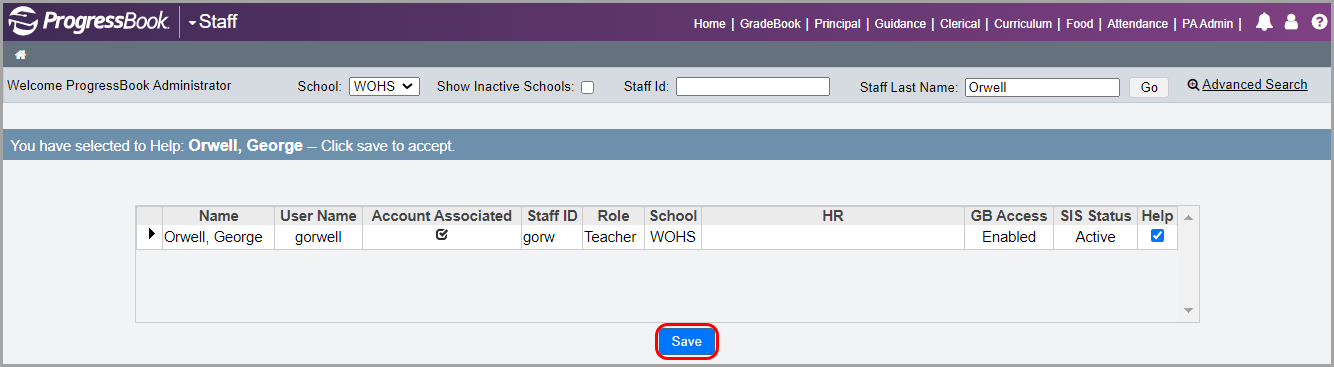
A list of staff members matching the search criteria displays.
4.In the Help column, select the checkbox of the staff member you want to help.
Note: You can help only one teacher at a time. If the teacher you choose to help has multiple accounts, all accounts are selected by default so you can help that teacher across all of their accounts.
5.Click Save.
|
|
At the top-left corner of the screen, the name of the teacher you are helping displays.
Note: When you want to stop helping that teacher, beside the teacher’s name, click  .
.
6.At the top of the screen, click GradeBook.
|
|
The teacher’s classes display on the Teacher Home Page.
7.Proceed to help the teacher as desired. (For details on how to perform teacher tasks in GradeBook, see the ProgressBook GradeBook Teacher Guide.)
8.(Optional) To run Report Builder reports for a teacher, proceed as follows:
a.In the Run as drop-down list, select the teacher’s name.
The reports to which the teacher has access display in the list of reports.
b.Select the appropriate report, and then click Run.
|
|