Entering Report Card Entry Dates
You must set up specific dates on which teachers can enter interim and report card grades for each building in the school district. You can save time by using the copy option at the bottom of the screen if the entry dates are the same for multiple buildings in your district.
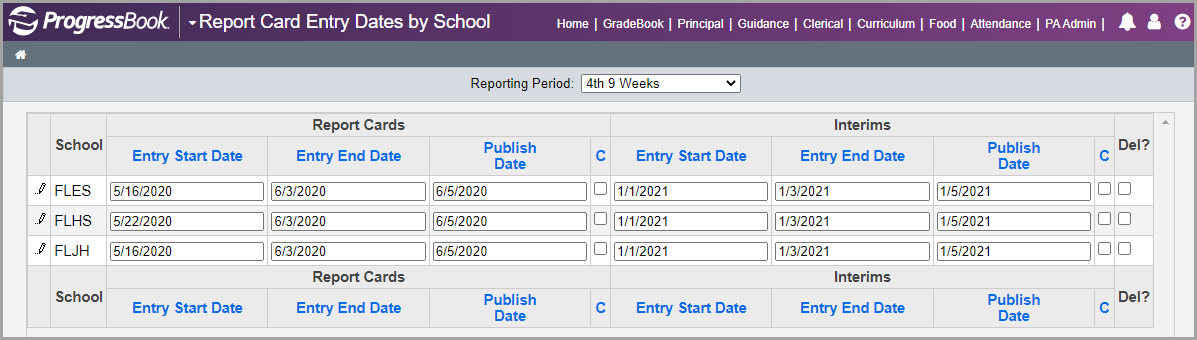
1.On the Administrator Home Page, below Grading Setup, click Report Card Dates.
2.On the Report Card Entry Dates by School screen, in the Entry Start Date field, enter the appropriate date and time for the building that you are setting up.
3.In the Entry End Date field, enter the appropriate date and time.
Note: If you do not specify a time, the system uses 12:00 AM as the beginning and ending time.
Note: You can save time by using the copy defaults option to enter entry start and end dates for all buildings and then modify the dates and times for individual buildings, if necessary.
4.If your school district uses ParentAccess and the Frontline ProgressBook Parent & Student app, in the Publish Date column, enter the date on which and time at which you want report card or interim grades to start displaying in ParentAccess and the Frontline ProgressBook Parent & Student app.
Note: For school districts that keep report card grade entry periods open all school year, the current grading period that displays in ParentAccess and the Frontline ProgressBook Parent & Student app is determined by the report card publish date and not the report card entry end date. However, if the report card publish date is blank, the report card entry end date is used.
5.Click Save.
Note: If teachers need additional time to enter report card data, then you can extend the Report Card Entry End Date as needed. If the report card is using batch integration with StudentInformation for report card grades, it is necessary to deselect the checkbox in the C column for that school to allow the grades to be updated again in StudentInformation.
Note: For school districts that use the batch report card integration, the Export Grades link displays. Click it to open the Report Card Grade Export screen to export only the interims and report cards grades entered for reporting periods in which entry end dates have passed.