for the district grade level you want to associate.
Associating District Grade Levels with State Grade Levels
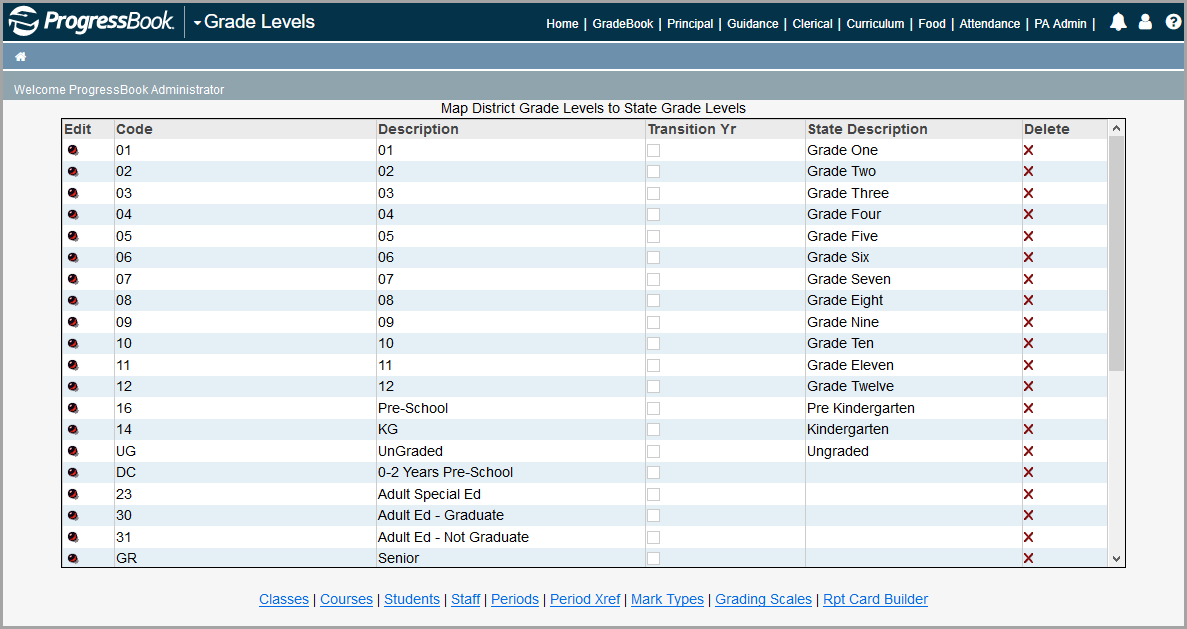
Only school districts that use SpecialServices Classic must associate state grade levels with district grade levels in GradeBook to ensure that correct state grade levels are used by SpecialServices Classic for state reporting purposes.
1.On the Administrator Home Page, below District Setup, click Grade Levels.
2.On the Grade Levels screen, in the Edit column, click for the district grade level you want to associate.
|
|
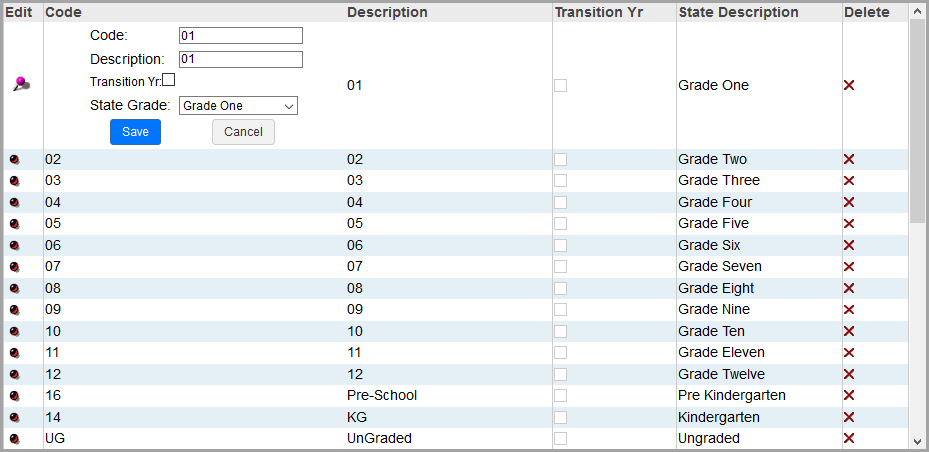
3.In the Code field, enter the appropriate code.
Note: You can use a two-digit numeric or two-character alphabetic reference that matches the grade level in the Code field. For example, you could enter a code of 01 for grade 1 and a code of KG for Kindergarten. The codes used in the Code and Description field can be the same.
4.In the Description field, enter a grade level’s description.
5.In the State Grade drop-down list, select the appropriate state grade level that you want to associate with the district grade level.
|
|
Note: The Transition Yr (transition year) refers to a student grade level that moves from one building to another building. This field is no longer used.
7.To continue associating state grade levels with district grade levels, repeat step 2 through step 6.
Note: To delete an existing grade level, click  in the Delete column in the appropriate row. You cannot delete an existing grade level if any data is associated with it.