|
|
Set Prior Days to Change Period Attendance
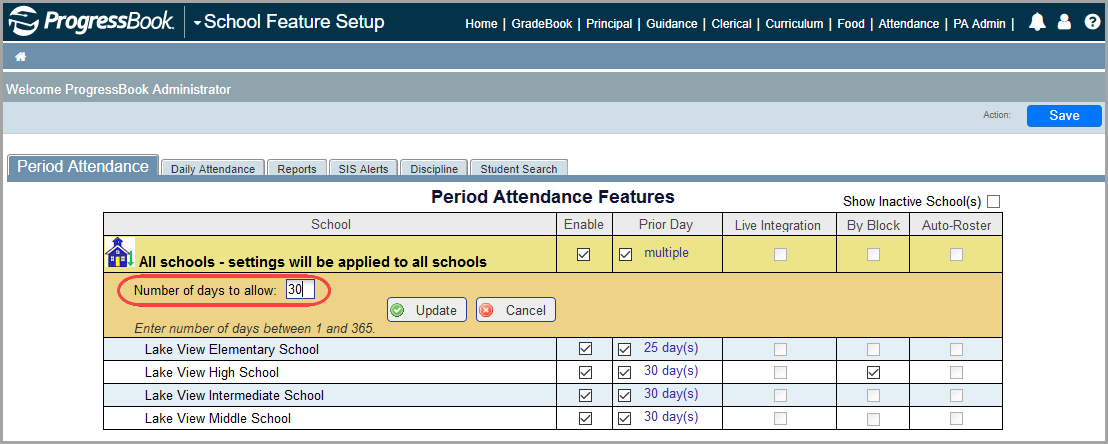
You can specify for all schools or each school individually the number of days prior to the current day for which teachers can enter or modify period attendance on the Period Attendance screen or Seating Chart.
1.On the Administrator Home Page, below District Setup, click School Features.
The School Feature Setup screen Period Attendance tab displays.
2.To set the number of days prior to the current day for which users can enter or modify period attendance for all the schools in the district, in the Prior Day column, in the All schools row, click either multiple or 365 day(s).
Note: To set the number of days prior to the current day that you can enter or modify period attendance for an individual school, click 365 day(s) in the Prior Day column for that school.
3.In the Number of days to allow field, enter the appropriate number of days. The default is 365.
4.Click Update.
The number of prior days is updated for the selected schools, and a success message displays.
|
|
Teachers cannot enter or modify period attendance on the Period Attendance screen or Seating Chart on any day past the set number of days permitted for period attendance. On the Period Attendance screen, in the Class Attendance drop-down list, the list of attendance codes is not available, and the following message displays: “Altering period attendance in the past is only available for [#] day(s) prior to the current date.”