Teacher Comment – General comment appears on all students’ progress reports
Student Progress Report by Assessments
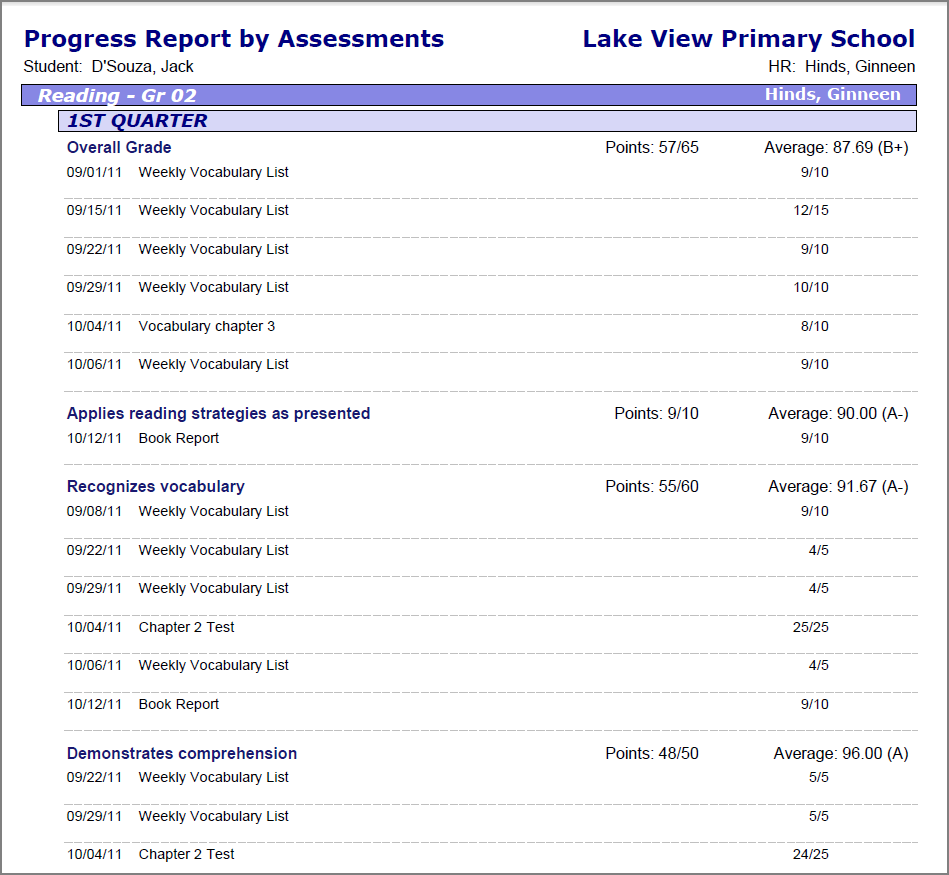
When using standards-based report cards, this report is particularly useful because it displays student progress by report card assessments. Assignments display below each report card assessment to which they are mapped. This report can be used in place of interim report cards and for Parent/Teacher conferences.
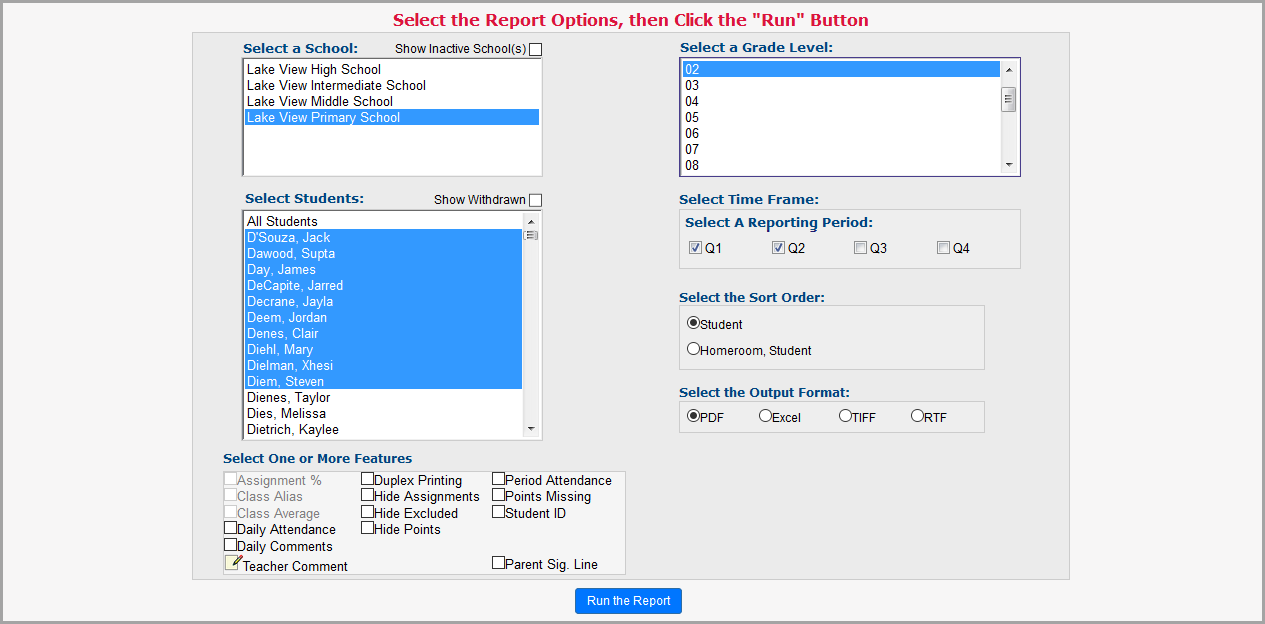
1.On the Principal Home Page, below the Student Information section, select Student Progress Report by Assessments.
2.On the Student Progress Report by Assessments screen, select the appropriate school for which you want to run the report.
3.Select the appropriate student(s).
4.(Optional) To include students withdrawn from the school in the Select Students list, select the Show Withdrawn checkbox.
5.Select one of the following features to display on the report:
•Daily Attendance – Displays daily attendance
•Daily Comments – Displays daily comments
•Duplex Printing – Prints on front and back of the page with new student starting on a front page
•Hide Assignments – Displays earned points, total points, weight, and average for each assignment type, but does not display assignments
•Hide Excluded – Does not display assignments that are excluded
•Hide Points – Does not display points used to average the calculation
•Parent Sig. Line – Lines for parents to sign and date verifying that they reviewed the progress report
•Period Attendance – Displays period attendance
•Points Missing – Displays missing assignments with the amount of points the assignment is worth
•Student ID – Displays the student identification number
•Teacher Comment – General comment appears on all students’ progress reports
6.Select the appropriate grade level.
7.Select the appropriate reporting period.
8.Select one of the following sort order options:
•Student – (Default) Sorts information by student
•Homeroom, Student – Sorts information first by homeroom, if a teacher has been assigned to a homeroom, then by student last name. If a teacher is assigned to a homeroom, the teacher’s name displays in the report header. If a teacher has not been assigned to a homeroom, the homeroom ID displays. If a teacher has not been assigned to a homeroom and there is no homeroom ID, the information is sorted by student last name.
9.Select one of the following output formats:
•Excel
•TIFF
•RTF
10.Click Run the Report.
|
|
11.Review the report, and then close the report window.
When you view the report, it displays report card assessments from the report card.
|
|