 displays on the right side of the screen.
 Print a RIMP on the Student Roadmap Screen
Navigation: DataMap > Student Roadmap
Note: For information on accessing the Student Roadmap screen, see “Access the Student Roadmap.”
1.On the Student Roadmap screen, in the RIMPs section, in the row of the RIMP you want to print, hover your cursor until displays on the right side of the screen.
2.Click  .
.
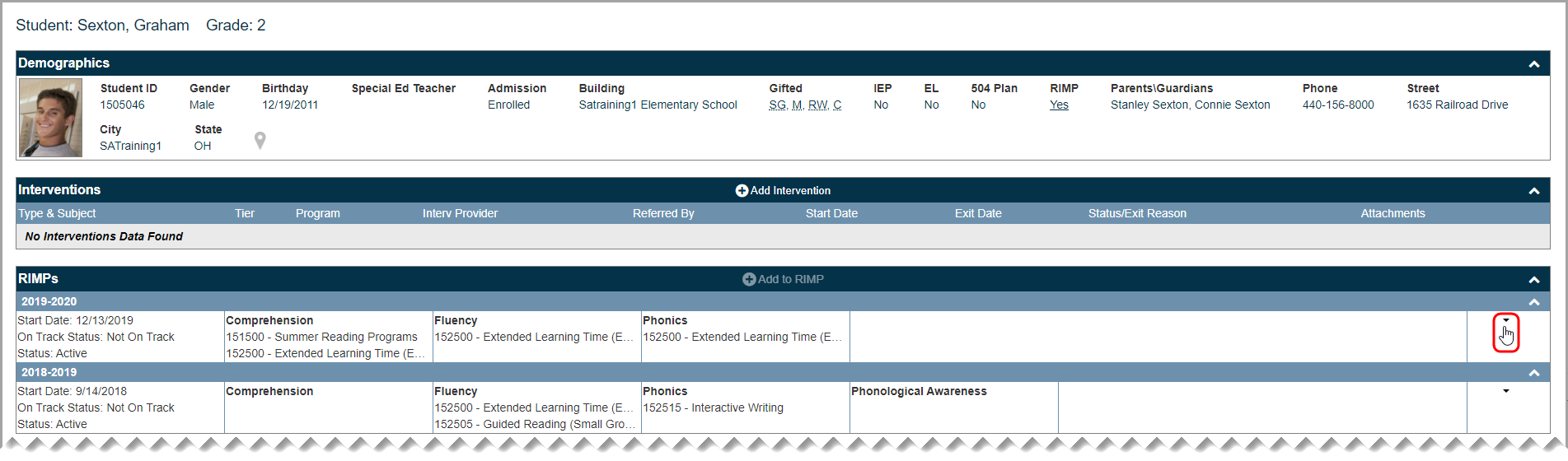
3.In the drop-down list that displays, click Delete.
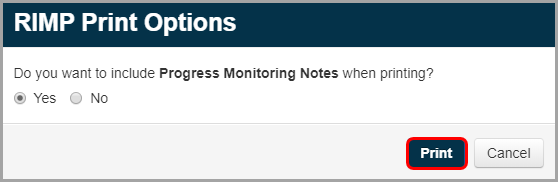
4.(Optional) On the RIMP Print Options window that opens, select the Yes radio button if you want to include Progress Monitoring Notes on the printed RIMP. (No is selected by default.)
5.Click Print.
The print preview version of the screen displays.
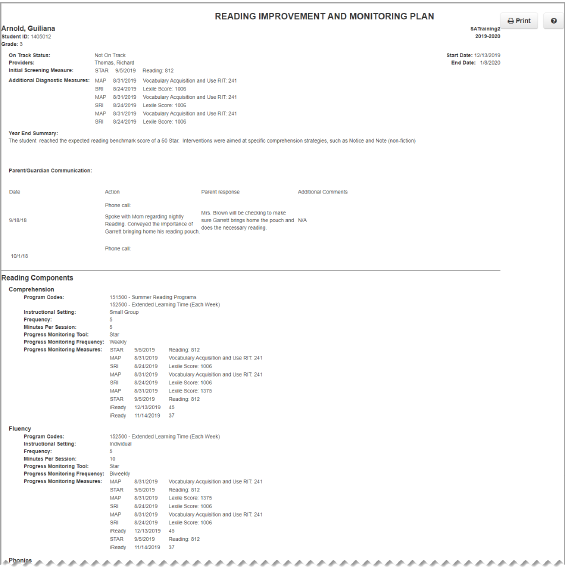
6.Click Print.
Note: Information from the Attachments tab does not display when you print a RIMP.