 . Then, click Print.
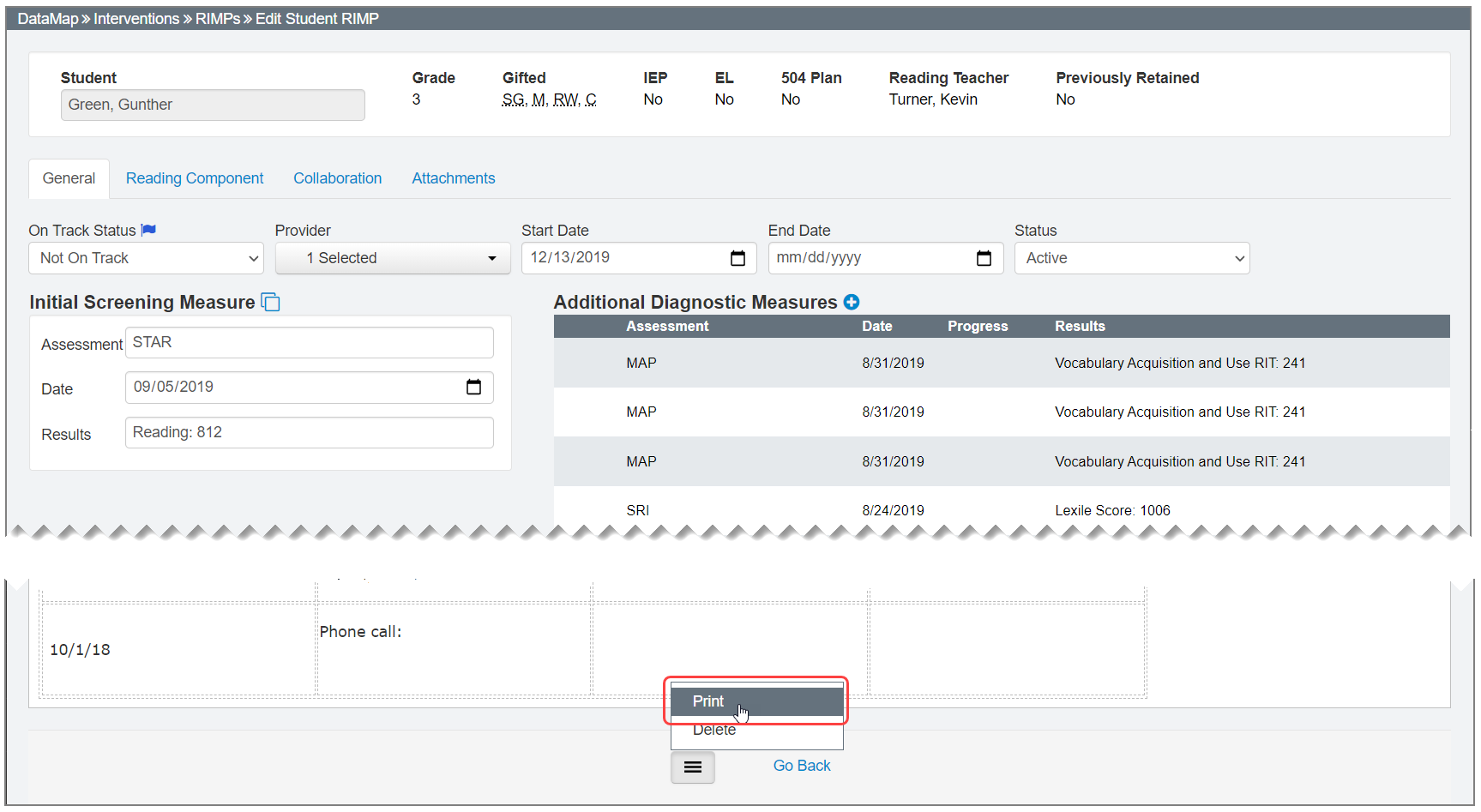
Print a RIMP on the Edit Student RIMP Screen
Navigation: DataMap > Interventions > RIMPs > Edit Student RIMP > General tab
1.On the Edit Student RIMP screen General tab, click . Then, click Print.
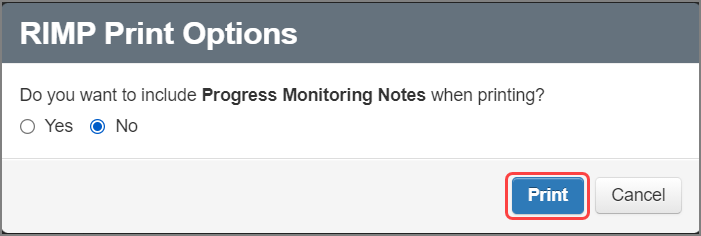
2.(Optional) On the RIMP Print Options window that opens, select the Yes radio button if you want to include Progress Monitoring Notes on the printed RIMP. (No is selected by default.)
3.Click Print.
The print preview version of the screen displays.
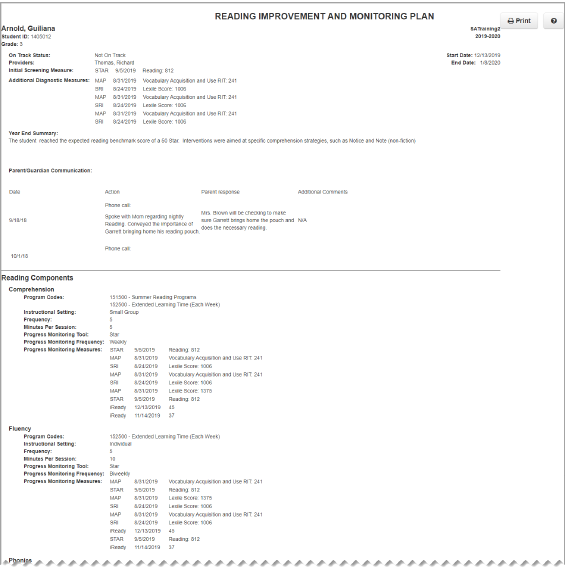
4.Click Print.
Note: Information from the Attachments tab does not display when you print a RIMP.