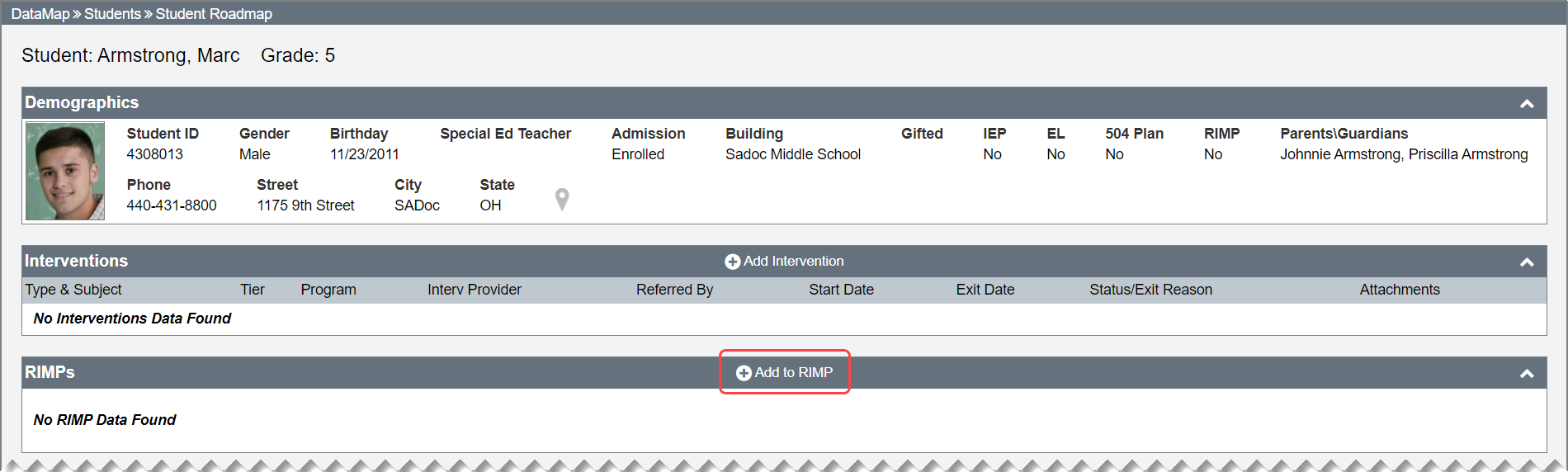
Add a RIMP on the Student Roadmap Screen
Navigation: DataMap > Student Roadmap
Note: For information on accessing the Student Roadmap screen, see “Access the Student Roadmap.”
1.On the Student Roadmap screen, in the RIMPs section, click Add to RIMP.
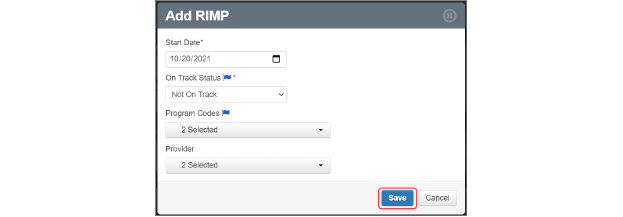
2.On the Add RIMP window that opens, enter or select a Start Date.
Note: If you enter or select a Start Date that does not fall between August 1 and May 30 of the current school year, an error message displays and you cannot save the RIMP.
3.Select an On Track Status.
4.(Optional) In the Program Codes drop-down list, select the checkbox(es) beside the program code(s) you want to associate with this RIMP. Or, to select all program codes, select the Select All checkbox.
5.(Optional) In the Provider drop-down list, select the checkbox(es) beside the name(s) of the provider(s) for this RIMP. Or, to select all providers, select the Select All checkbox.
6.Click Save.
A success message briefly displays, and then the Edit Student RIMP screen General tab displays.
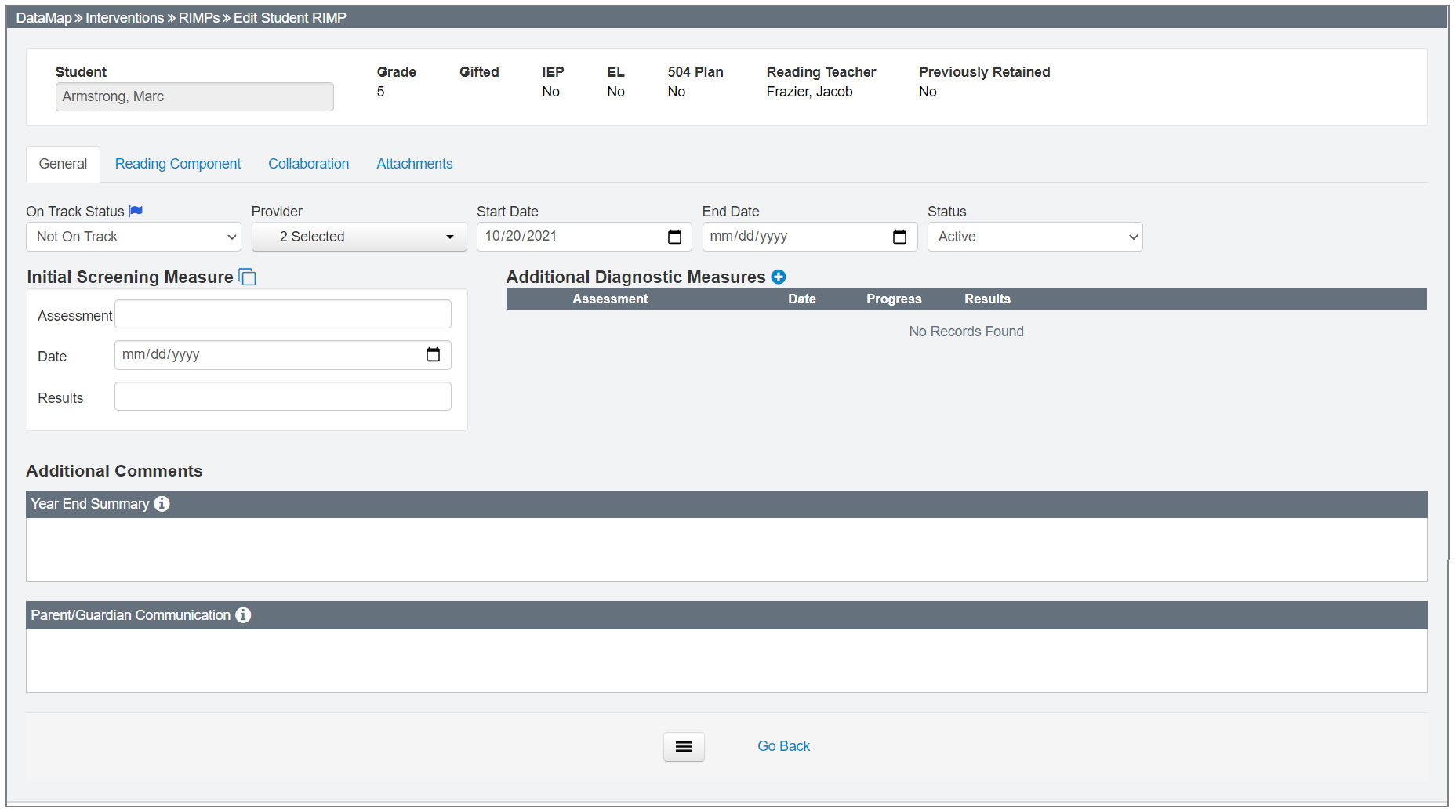
Note: For information on editing RIMPs, see “Edit a RIMP.”