 .
.Navigation: DataMap > Admin > Manage Assessment Scores
When you import assessment scores from a file or from an assessment provider’s website, DataMap may not be able to match all student scores to students in StudentInformation (e.g., DataMap may not be able to match a student whose name is shortened in a file or on a provider’s website due to excessive character length).
1.On the Manage Assessment Scores screen, in the row of the assessment score record for which you want to match students, hover your cursor until icons display. Then, click .
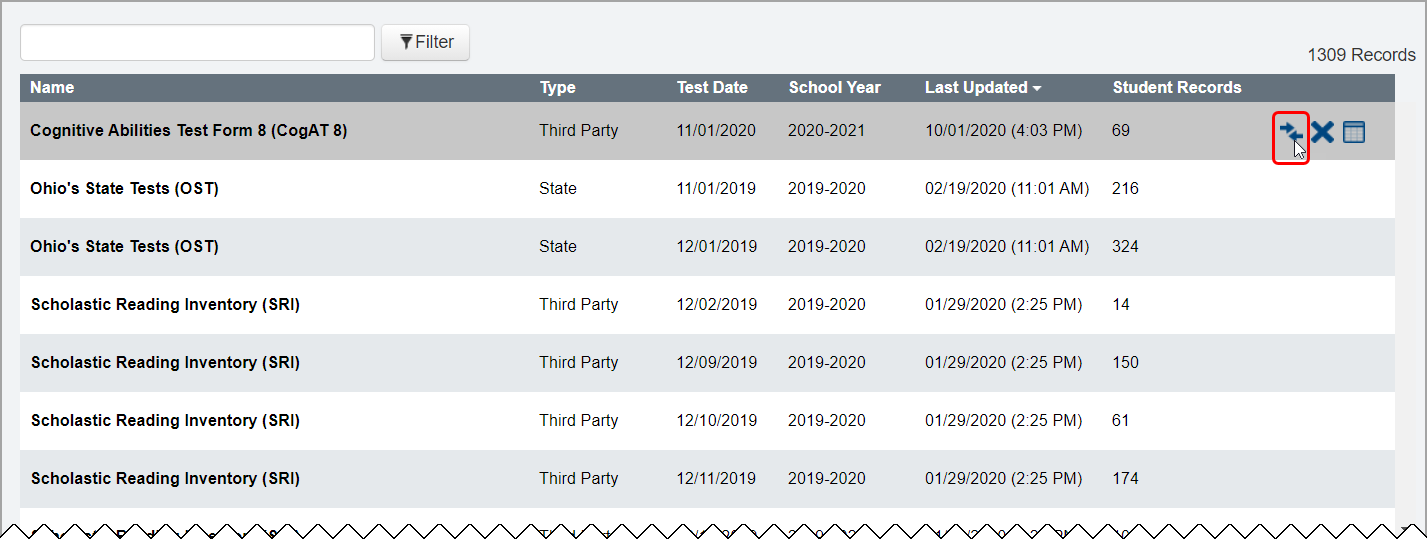
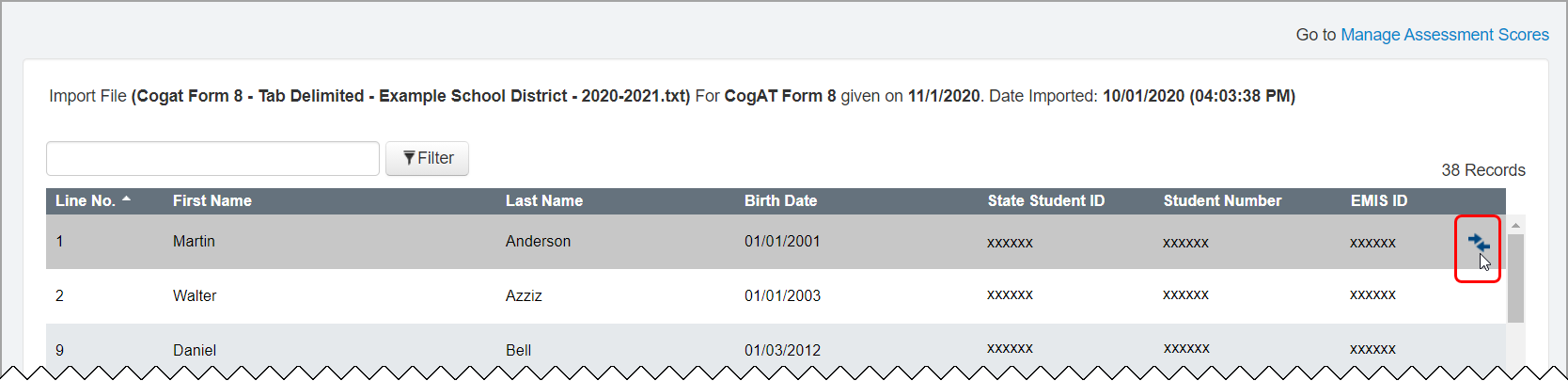
The Manage Unmatched Students screen displays a list of unmatched students for the selected assessment score record.
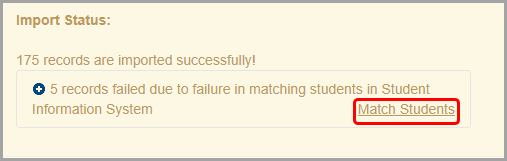
Note: You can also access the Manage Unmatched Students screen from the Import Status message that displays on the Import Assessment Scores screen.
2.On the Manage Unmatched Students screen, hover your cursor in the row of the student you want to match. Then, click  .
.
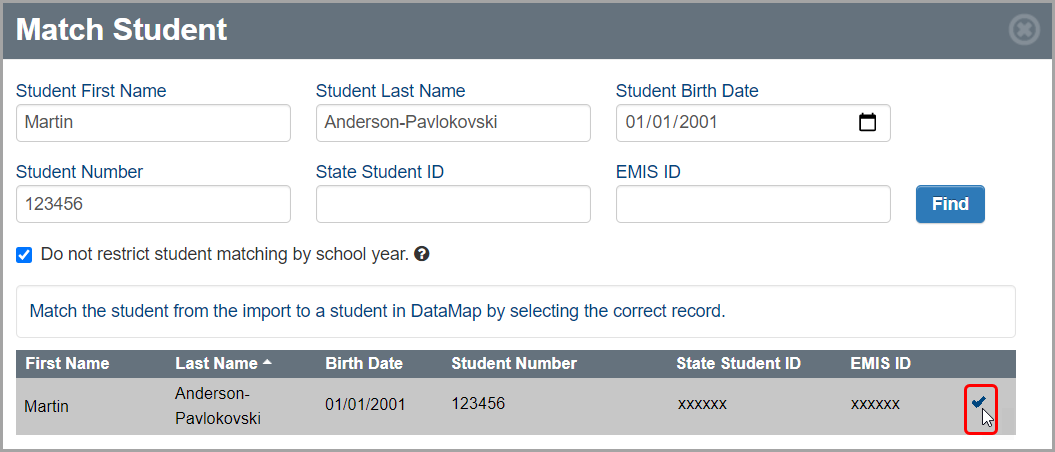
3.(Optional) On the Match Students window that opens, enter or select information in any of the following fields to narrow your search results (some of these fields may autopopulate):
•Student First Name
•Student Last Name
•Student Birth Date
•Student Number
•State Student ID
•EMIS ID
4.(Optional) Select the Do not restrict student matching by school year checkbox to ensure that students are matched using all available assessment data even if a student was not enrolled in the district and does not have history in StudentInformation for the school year in context.
5.Click Find.
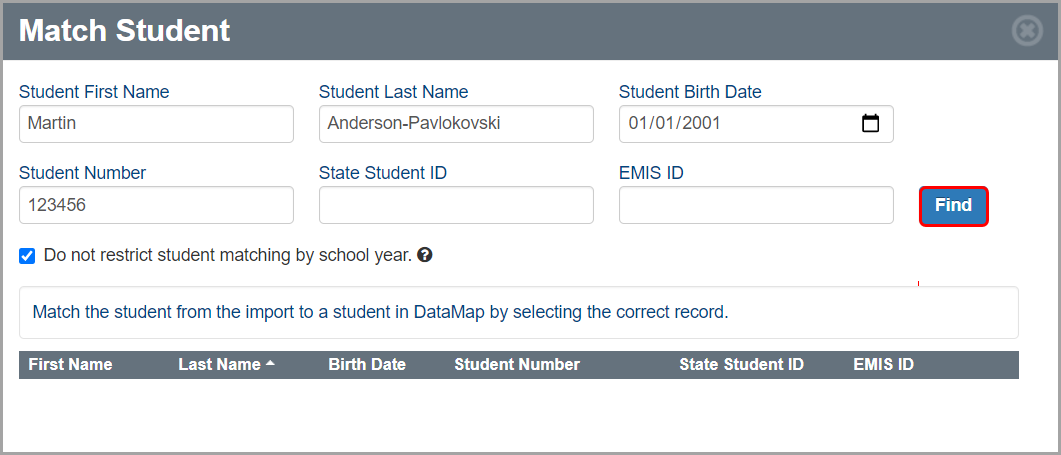
DataMap searches for the student in StudentInformation. The search results (if any) display at the bottom of the Match Student window.
6.Hover your cursor in the row of the correct student, and then click  .
.
The selected student’s assessment data imports, and the student’s name no longer displays on the Manage Unmatched Students screen.